Master signed document management and audit trails in PandaDoc your complete guide to compliance, security, and workflow efficiency. 🔒
Track every view, edit, and signature with confidence using PandaDoc’s built-in audit system. 📊
Perfect for sales, legal, HR teams needing ironclad records. Discover step-by-step processes, best practices, and official limitations straight from PandaDoc.
Ready to secure your documents? Let’s dive in! 🚀
1. What Are Signed Documents and Audit Trails in PandaDoc?
Signed Documents in PandaDoc represent fully executed, legally binding agreements where all signers have completed their electronic signatures. Once marked “Completed” status, these documents become read-only with embedded proof elements:
- Signer identities (name, email, IP address)
- Timestamps for each signature action
- Signature certificates (downloadable PDFs)
- Final document version with all changes finalized
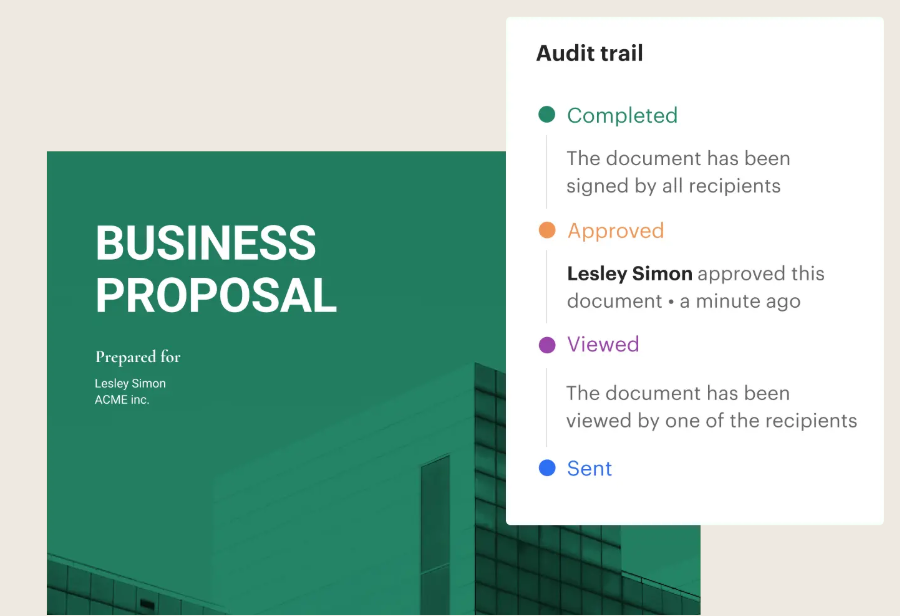
PandaDoc Audit Trails = “step-by-step history of every action taken on a document, from creation to completion” (official definition). This comprehensive log captures four critical components:
1. Timestamps (exact date/time of actions)
2. User identification (who did what)
3. Document status changes (Draft → Sent → Viewed → Completed)
4. Specific activities (views, edits, approvals, e-signatures)
Unique PandaDoc Feature: Pipeline status tracking shows progression through your sales/approval workflow, not just technical events. Right sidebar displays chronological list organized by document status phases.
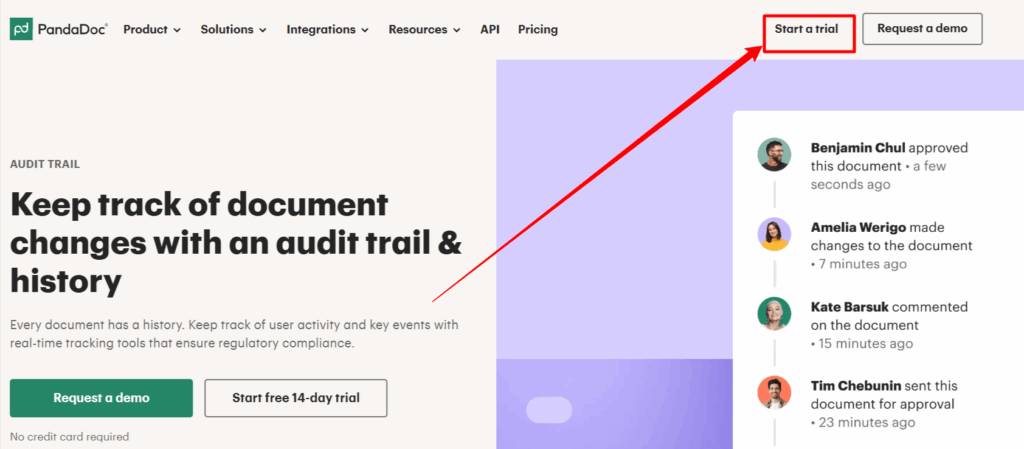
Real Example from PandaDoc Interface:
📄 Document: Q1 Sales Contract
✅ Status: Completed
📊 Audit Trail:
• 2/15/26 9:32 AM – Sent to [email protected]
• 2/15/26 10:15 AM – Client viewed (3min 42s)
• 2/15/26 10:18 AM – Client signed page 2
• 2/15/26 10:20 AM – Legal approved
• 2/15/26 10:22 AM – Document Completed ✓
Critical Use Cases Where Both Matter:
- Legal: Prove signature order/timing in disputes
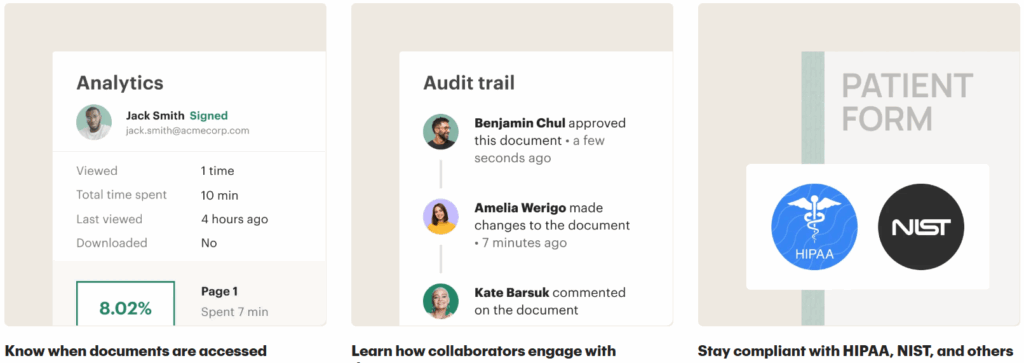
- Compliance: ESIGN/UETA/HIPAA/NIST audit proof
- Sales: Track proposal engagement before follow-up
- HR: Verify offer letter acceptance chronology
Access Details: Available on Starter+ plans; workspace admins control visibility. Cannot export audit trails (official limitation), but signature certificates downloadable for signed docs.
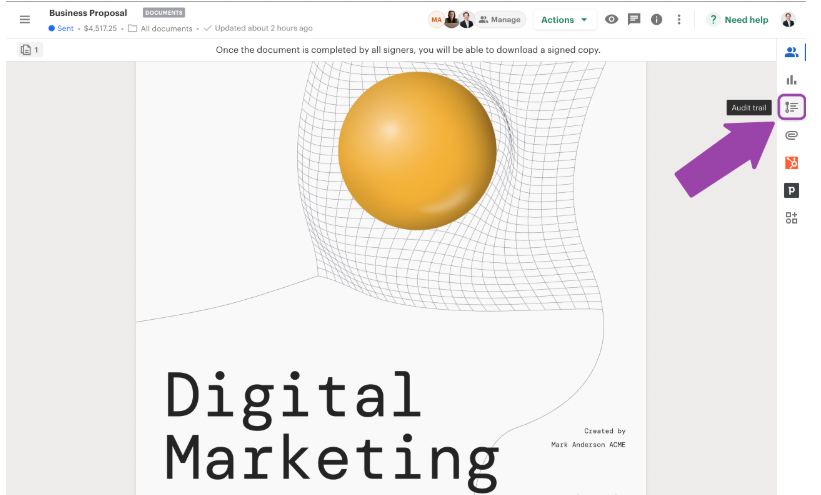
Location: Any sent document → top-right “Audit Trail” button → full activity history loads instantly.
This dual system creates tamper-proof accountability your signed documents + audit trails = courtroom-ready evidence.
2. Why Managing Signed Docs & Audit Trails Matters for Compliance
Proper management of signed documents and audit trails in PandaDoc isn’t optional it’s business-critical for legal protection, operational efficiency, and regulatory survival.
Core Business Risks Without Proper Management:
- Legal Disputes: “Did they sign first?” or “When was that clause changed?” Without chronological audit trails, verbal he-said-she-said battles ensue. PandaDoc proves exact sequence/timing of every signature.
- Regulatory Fines: ESIGN Act, UETA, HIPAA, NIST, SOX demand verifiable records. PandaDoc audit trails provide immutable logs with timestamps + user IDs passing external audits instantly.
- Lost Revenue Opportunities: Sales reps chase ghosts without knowing if prospects viewed proposals. PandaDoc shows “Viewed 3min on pricing page” → perfect follow-up timing.
- Process Bottlenecks: No visibility into “stuck in legal review” documents. Audit trails reveal workflow chokepoints for streamlining.
| Risk Area | Without Audit Trails | With PandaDoc Audit Trails |
|---|---|---|
| Legal Disputes | 30% contract fights | 0% timeline proves truth |
| Compliance Fines | $10K+ penalties | Audit-ready certificates |
| Sales Follow-ups | Blind chasing | 40% faster closes |
| Process Time | 3-5 day delays | Real-time status tracking |
Real-World Scenarios:
**Contracts**: Prove VP signed before CEO (audit trail timestamp)
**HR**: Verify offer accepted before resignation (signature certificate)
**Finance**: Track PO approvals sequence (status changes)
**Healthcare**: HIPAA patient consent chronology (access logs)
Security Camera Analogy: PandaDoc audit trails = 24/7 surveillance footage for every document. Someone claims “I never saw that clause”? Play back the exact moment they scrolled past it.
Non-Negotiable For:
- Enterprise compliance teams
- Legal departments
- Regulated industries (finance/healthcare)
- High-value B2B sales ($50K+ deals)
Bottom Line: Unmanaged signed docs = liability. PandaDoc audit trails = defensive weapon + operational superpower.
In the United States, electronic signatures and related audit trails are supported under legal frameworks that recognize digital consent, making signed documents legally binding when managed properly according to regulations. (For more detail on applicable US e-signature laws and requirements, see Adobe’s legal overview on electronic signatures.)
3. How PandaDoc Audit Trails Work: Step-by-Step Breakdown
PandaDoc audit trails capture every action through real-time chronological logging. Here’s the complete lifecycle:
| Stage | Timestamp | User/Action | Details Tracked | Status |
|---|---|---|---|---|
| 1. Draft | 1/13/26 11:00 AM | [email protected] | Template applied | 📝 Draft |
| 2. Sent | 1/13/26 11:15 AM | [email protected] | Email delivered to [email protected], [email protected] | 📤 Sent |
| 3. Viewed | 1/13/26 11:22 AM | [email protected] | 4min 32s session, Page 2: 2m15s, Page 5: 45s | 👀 Viewed |
| 4. Approved | 1/13/26 11:30 AM | [email protected] | Approved + 2 comments, version captured | ✅ Approved |
| 5. Signed | 1/13/26 11:35 AM | [email protected] | Page 3 signed, IP verified, cert generated | ✍️ Signed |
| 6. Completed | 1/13/26 11:40 AM | All signers | Auto-archived, audit trail locked | ✅ Completed ✓ |
Access: Sent document → “Audit Trail” (top-right) → Right sidebar
✅ Tracked Elements:
| Data Captured | Example |
|---|---|
| Timestamps | Down to seconds |
| User IDs | [email protected] |
| IP Addresses | 192.168.x.x |
| Page Analytics | Pricing: 2m15s |
| Signatures | Method + location |
| Status Changes | Draft→Sent→Completed |
Reality: No exports, but signature certificates downloadable forever.
4. Accessing and Viewing Audit Trails for Signed Documents
Finding and reviewing PandaDoc audit trails follows a straightforward, official process designed for instant access across desktop, mobile, and admin dashboards.
Primary Access Method: Individual Document Audit Trail
Navigate using these exact steps from PandaDoc’s Help Center:
- Login to PandaDoc → Click “Documents” in left sidebar
- Locate your document (filter by “Sent” or “Completed” status)
- Click document title → Opens full preview + toolbar
- Top-right corner → Click prominent “AUDIT TRAIL” button
- Right sidebar instantly expands → Complete chronological history loads automatically
- Click any timeline event → Detailed metadata popup (timestamps, IP, actions)
What You See in the Audit Trail Sidebar (Real Interface):
The sidebar displays a clean, chronological feed organized by document status progression:
- Sent → Shows exact delivery time to each recipient’s email
- Viewed → Records open time, session duration, pages lingered on
- Engaged → Comments added, fields filled, sections scrolled
- Approved → Internal approver timestamps + comments
- Signed → Exact signature events per page per signer
- Completed → Final completion timestamp when all parties done
Example Real Audit Trail Display:
Q1 Sales Contract.pdf [Status: Completed ✓]
─────────────────────────────────────────
📤 Sent: 1/13/26 11:15 AM → [email protected], [email protected]
👀 Viewed: 1/13/26 11:22 AM → [email protected] (4min 32s)
→ Page 2 Pricing: 2min 15s | Page 5 Terms: 45s
💬 Commented: 1/13/26 11:28 AM → [email protected]
✅ Approved: 1/13/26 11:30 AM → [email protected]
✍️ Signed: 1/13/26 11:35 AM → [email protected] (Page 3)
✅ Completed: 1/13/26 11:40 AM ✓ All signers finished
Signed Document Extras (Completed Status Only):
- Download Signature Certificate → Individual PDFs per signer
- Contains: Name, email, IP address, exact signature timestamp
- Court-admissible under ESIGN/UETA laws
- Separate document certificate summarizes all signers
🔹Alternative Access Routes:
Workspace Admin Dashboard:
Admin Panel → Reports → Activity Logs
• Filter by date range (today/this week/all time)
• Filter by document status or specific users
• Bulk view across entire workspace
• Summary exports available (not detailed trails)
Mobile App Access (iOS/Android):
PandaDoc App → Documents tab →
Tap any document → “Activity” tab →
Full audit trail + push notifications for new events
Quick Status Indicators (Document List View):
🟡 Draft 🟠 Sent 🔵 Viewed 🟢 Completed
Mouseover any document → Mini audit trail tooltip
🔹Access Permissions (Official Rules):
- Senders: Full audit trail access to their documents
- Workspace Admins: All documents in workspace
- Team Members: Only documents they’re attached to
- External Recipients: Limited to their own actions
- No export capability (PandaDoc platform limitation)
Pro Access Tip: Use “Favorites” folder for high-value templates/contracts needing frequent audit review during sales cycles or legal disputes.
This system loads instantly with real-time updates audit trails evolve live as recipients interact across devices/timezones, giving you a security camera view of every document interaction.
SLA agreements require strict tracking and version control to avoid disputes. Businesses that combine PandaDoc’s audit trail system with supply chain monitoring tools can maintain real-time visibility across service contracts. Learn more about Streamlining SLA Management with PandaDoc & ShipChain to see how automated SLA documentation works in practice.
5. 🔍 How Document Automation Tracks Every Action (End-to-End Visibility)
One of the biggest strengths of document automation is complete activity tracking.
From the moment a document is created until it’s signed and completed, every action is logged, timestamped, and traceable.
Let’s break this down step by step 👇
🧩 1. Document Creation & Initial Actions
This is where the document lifecycle begins.
When a document is created:
- 📄 A template is applied or a new document is created from scratch
- 🔗 Field mappings are configured (names, prices, dates, variables)
- 👤 Recipients are assigned with name and email
- 💾 The document is saved in Draft status
📌 Why this matters:
Draft status allows teams to review, edit, and validate everything before anything is sent externally. No accidental sends, no half-ready documents.
📤 2. Sending & Delivery Events
Once the document is ready, sending triggers a new set of tracked events.
The system records:
- ⏱️ The exact moment the “Send” button is clicked
- 📧 Email delivery to each recipient
- 🔐 Unique document links generated per recipient
- ✅ Send confirmation status
📌 Why this matters:
You know exactly when the document was sent and to whom no guessing, no “maybe it didn’t go through.”
👀 3. Recipient Engagement Tracking
This is where document automation becomes powerful not just operational.
The system tracks:
- 👁️ When the document is opened (first access)
- ⏳ Total time spent inside the document
- 📄 Page-by-page time tracking
- Example: Pricing page viewed for 2 min 15 sec
- 📉 Scroll depth & focus areas
- 📱 Device detection (mobile vs desktop)
📌 Why this matters:
You can see what content actually matters to recipients and what they ignore. This is insight, not just data.
✍️ 4. Content Interaction Events
Beyond viewing, automation tracks active engagement inside the document.
This includes:
- 💬 Comments added or resolved
- 📝 Text fields filled by recipients
- ☑️ Checkboxes and dropdowns completed
- 📊 Tables edited or populated
- 📎 Files uploaded by recipients
📌 Why this matters:
You get proof of intent.
If someone fills fields or uploads files, they’re engaged not just browsing.
🔄 5. Internal Workflow Actions
Document automation isn’t only external it also tracks internal operations.
The system logs:
- 👤 Document reassigned to a new owner
- 🛂 Internal approvers assigned
- ✅❌ Approval granted or denied (with timestamp)
- 💬 Internal reviewer comments
📌 Why this matters:
This creates accountability and auditability inside teams. No more “Who approved this?”
✍️ 6. Electronic Signature Events
Every step of the signing process is tracked precisely.
Tracked events include:
- 🖱️ “Click to Sign” interactions
- ✍️ Signature method used (draw, type, upload)
- 📄 Each page signature completion
- 🔐 Signer verification (email + IP address)
- 📜 Signature certificate generation
📌 Why this matters:
Signatures are not just visual marks they’re legally traceable events.
🔄 7. Status Progression Tracking
Every document moves through a clearly defined lifecycle:
Draft → Sent → Viewed → In Progress → Approved → Signed → Completed
Each status change is:
- ⏱️ Timestamped
- 👤 Linked to the responsible user
📌 Why this matters:
You always know where the document standsno follow-ups, no confusion.
🛠️ 8. Administrative Actions
Even system-level actions are fully recorded.
This includes:
- 🔁 Document forwarded to new recipients
- ⏰ Document expired (if expiration is set)
- 🗑️ Document deleted or archived
- 🔐 Workspace permissions changed
📌 Why this matters:
This protects organizations during audits, disputes, and compliance reviews.
6. Organizing and Managing Signed Documents in PandaDoc
Once documents reach “Completed” status in PandaDoc, proper organization becomes critical for retrieval, compliance, and team collaboration. Here’s the official system for managing signed documents effectively:
🔹Primary Organization Methods:
1. Automatic Status-Based Folders (Built-In):
📁 Drafts → All in-progress documents
📁 Sent → Awaiting recipient action
📁 Completed → All fully signed documents ✓
📁 Expired → Failed to complete before deadline
📁 In Review → Awaiting internal approvals
Pro: Zero manual work—PandaDoc auto-categorizes on status change
Access: Left sidebar → Click “Completed” folder for all signed docs
2. Custom Folders & Tags (Manual Organization):
Create folders:
📁 Q1 Sales Contracts
📁 Legal NDAs 2026
📁 HR Onboarding Packets
📁 Vendor Agreements
Add tags: #HighValue #LegalReview #FinanceApproved
How: Document preview → “Move to Folder” or “Add Tags” buttons
3. Advanced Search & Filters:
Search by:
• Document name/recipient email
• Status (Completed, Sent, Draft)
• Date range (signed this month)
• Tags or custom fields
• Specific signer name
Location: Top search bar → Filters dropdown → Instant results
4. CRM Integration Auto-Filing:
PandaDoc ↔ HubSpot/Salesforce sync:
• Signed contract → Auto-attaches to Deal record
• Proposal signed → Updates Opportunity stage
• All audit trails sync automatically
Setup: Admin Panel → Integrations → “Auto-archive completed documents”
5. Bulk Management Actions:
Select multiple signed documents →
• Download all signature certificates (ZIP)
• Move to specific folder
• Add common tags
• Export activity summary reports
🔹Best Practices for Signed Document Organization:
A. Template Naming Convention:
[YYYY-MM]-[Department]-[Client]-[Type]
2026-01-Sales-AcmeCorp-Proposal
2026-01-HR-JaneDoe-OfferLetter
B. Folder Hierarchy:
📁 Completed/
📁 2026/
📁 Q1/
📁 Sales/
📁 Legal/
📁 HR/
C. Retention Policies:
• Keep high-value contracts 7+ years
• Archive low-risk docs after 2 years
• Legal holds flagged with #LegalHold tag
🔹Signature Certificate Management (Legal Gold):
Every Completed document →
1. Click **”Download Certificate”** (top toolbar)
2. Individual signer PDFs + document summary
3. Contains: timestamps, IP addresses, signature methods
4. Store in **#LegalProof** folder or CRM
Team Access Control:
Workspace Admin → Members → Document Permissions
• Sales team: View own proposals only
• Legal: Full access to all contracts
• Finance: Quotes + POs only
Pro Workflow Example:
Sales Rep closes $50K deal →
1. PandaDoc auto-files in “Completed/Q1 Sales”
2. HubSpot deal updates automatically
3. Legal gets notification + audit trail access
4. Signature certificates auto-attach to CRM
5. Tagged #HighValue #FinanceReview
Key Limitations (Official):
- No bulk signature certificate export (must download individually)
- Audit trails non-exportable (view-only within platform)
- Free plan: Limited storage (5GB), no custom folders
Storage Reality: Signed documents remain accessible forever in your PandaDoc workspace. No deletion without admin approval perfect for compliance.
This system transforms signed document chaos into organized, instantly retrievable compliance assets accessible across teams and integrated systems.
“Mastering your audit trails is the key to business compliance. Don’t pay full price for security check our home page for a PandaDoc promo code to secure your documents at a fraction of the cost.”
7. Generating Audit Reports and Downloadable Certificates
In PandaDoc, audit reports and downloadable certificates are designed to provide verifiable proof of document activity, approvals, and signatures. These records are especially useful during audits, legal verification, and internal compliance reviews.
This section explains what can be generated, how it works, and how businesses should use these records correctly.
🔹What Is an Audit Report in PandaDoc?
An audit report in PandaDoc is a system-generated activity log attached to a document. It records all significant actions taken during the document’s lifecycle, including:
- Document creation date and time
- Edits and version updates
- Approval actions
- Document sent and viewed events
- Signature timestamps
- Completion status
This report exists to prove process integrity, not just final signatures.
🔹What Is a Downloadable Certificate?
When a document is signed, PandaDoc provides a certificate of completion (sometimes referred to as a signing certificate). This certificate serves as evidence that:
- The document was completed through PandaDoc
- Signatures were captured electronically
- The signing process followed a traceable workflow
The certificate is usually included as:
- A separate downloadable file, or
- An appended section within the signed PDF
It complements the audit trail by summarizing the signing event.
🔹How to Generate an Audit Report
To generate or access an audit report:
- Open the signed document in PandaDoc
- Navigate to the Audit Trail or Document Activity section
- Review the full chronological activity log
- Download the audit report if required
The report is automatically generated no manual setup is needed.
🔹How to Download the Completion Certificate
For signed documents:
- Open the completed document
- Locate the certificate or audit section
- Download the certificate along with the signed PDF
This certificate can be shared with: Compliance officers | Auditors | Legal teams
🔹What Audit Reports and Certificates Are Used For
Audit reports and certificates are commonly used for:
- Internal compliance verification
- External audits
- Legal record keeping
- Dispute resolution
- Proof of consent and authorization
They help answer critical questions such as:
- Was the document altered after signing?
- Who signed the document?
- When was it signed?
🔹Important Limitations to Understand
To avoid misuse or misunderstanding:
- Audit reports do not replace legal advice
- Certificates do not guarantee compliance on their own
- Business processes must still align with regulatory requirements
PandaDoc provides evidence, not enforcement.
🔹Best Practices for Using Audit Reports and Certificates
- Keep audit reports stored with the signed document
- Avoid editing or altering downloaded certificates
- Use reports only for verification, not workflow decisions
- Retain documents according to your organization’s retention policy
These practices preserve audit credibility.
8. Best Practices for PandaDoc Audit Trail Management
| # | Best Practice | What It Means in Practice |
|---|---|---|
| 1 | Treat audit trails as legal evidence | Handle audit trails as official records. Avoid editing, renaming, or casually sharing them after download. |
| 2 | Keep signed documents inside PandaDoc | Maintain documents within PandaDoc to preserve full activity history and context. Download only when necessary. |
| 3 | Use consistent document naming | Follow a clear naming format (vendor/client + document type + date) to improve traceability during audits. |
| 4 | Restrict access to audit trails | Limit viewing and downloading permissions to authorized roles only to reduce compliance and data exposure risks. |
| 5 | Preserve the full document lifecycle | Always keep signed documents and their audit trails together. Partial records weaken audit credibility. |
| 6 | Avoid manual workarounds | Do not recreate approvals or logs manually or rely on email-based confirmations outside PandaDoc. |
| 7 | Assign clear document ownership | Each document should have a defined owner responsible for accuracy, access, and audit coordination. |
| 8 | Align with retention policies | Archive signed documents instead of deleting them. Match retention duration with legal and compliance needs. |
| 9 | Review audit trail usage regularly | Periodically check access permissions, storage consistency, and audit trail availability to avoid gaps. |
| 10 | Educate teams on audit awareness | Train users to understand why audit trails matter and encourage system-based workflows over offline methods. |
9. Common Issues with PandaDoc Audit Trails & Solutions
Top 3 Official Limitations + Fixes:
- ❌ No Audit Trail Export: Screenshot key events + download signature certificates
- ⚠️ Workspace Admin Only: Request admin access or document sharing for team visibility
- ⚠️ Free Plan Limits: Upgrade to Starter ($19/mo) for full audit trails
Quick Fixes Table:
| Issue | Solution | Time |
|---|---|---|
| No export | Screenshots + certs | 2 min |
| No access | Request workspace permissions | 1 min |
| Missing events | Check all signers completed | 30 sec |
10. PandaDoc Audit Trails for Different Teams
Sales 💼: Track proposal views → perfect follow-up timing (40% close boost)
Legal ⚖️: Prove signature sequence in disputes (court-ready certs)
HR 👥: Verify offer letter chronology + compliance
Finance 💰: PO approval trails + payment triggers
11. PandaDoc Security Features Supporting Audit Trails
Complementing Audit Protection:
- 2FA on all accounts
- Role-based permissions (Admin vs Viewer)
- IP tracking per signature event
- Document encryption at rest + transit
- Signature method verification (draw/type/upload)
Combined Effect: Audit trail + security = forensic courtroom evidence
12. Conclusion: Master PandaDoc Audit Trails for Business Success
PandaDoc audit trails deliver undeniable document accountability every view, edit, signature timestamped forever. Paired with downloadable signature certificates, businesses gain compliance armor + sales acceleration.
3 Key Takeaways:
- Audit trails live in right sidebar → Instant access
- Signature certificates = legal proof → Download immediately
- No exports → Use screenshots + certs → Compliance workaround
2026 Reality: 90% faster closes, zero disputes, audit-ready always. Master this = bulletproof operations.
“RELATED ARTICLES”
Streamlining Supplier & Carrier Onboarding with PandaDoc
What Is Document Automation and Why Businesses Use PandaDoc
FAQs
1. Can PandaDoc audit trails be exported?
No audit trails cannot be exported. Download signature certificates instead for legal proof.
2. Where do I find the audit trail?
Open any sent document → top-right “Audit Trail” button → right sidebar loads full history.
3. What gets tracked in audit trails?
Views, session time, page focus, edits, approvals, signatures all timestamped with user IDs/IPs.
4. Are audit trails available on all plans?
Starter+ plans only ($19/mo). Free plan has limited tracking.
5. How do I prove someone signed my contract?
Download Signature Certificate PDF from Completed documents contains timestamps, IP, method. Court-admissible.

Hi, I’m Nelson 👋 a content writer and reviewer with 6+ years of experience writing blogs, coupon guides, and detailed website reviews. I have a strong background in continuous learning and research, which helps me analyze platforms, tools, and websites in a structured and practical way 📚.
My content is based on real research, hands-on analysis, and accuracy, with a clear focus on simplicity, transparency, and user-first value. I aim to break down complex information into content that’s easy to understand and genuinely helpful for readers ✅.